Since the COVID-19 pandemic began, online learning systems and online classes have become widely used — not just around the world, but in Myanmar too. Zoom and Google Classroom are the most commonly used tools for teaching.
These tools may already be familiar to people in the workforce, but students and young people also need to get comfortable with other digital tools for studying and note-taking. This article introduces tools that help anyone — students or otherwise — who prefers digital tools over always carrying a notebook, for writing or taking notes. To make things easier to understand, we’ve also included YouTube intro videos for each tool.
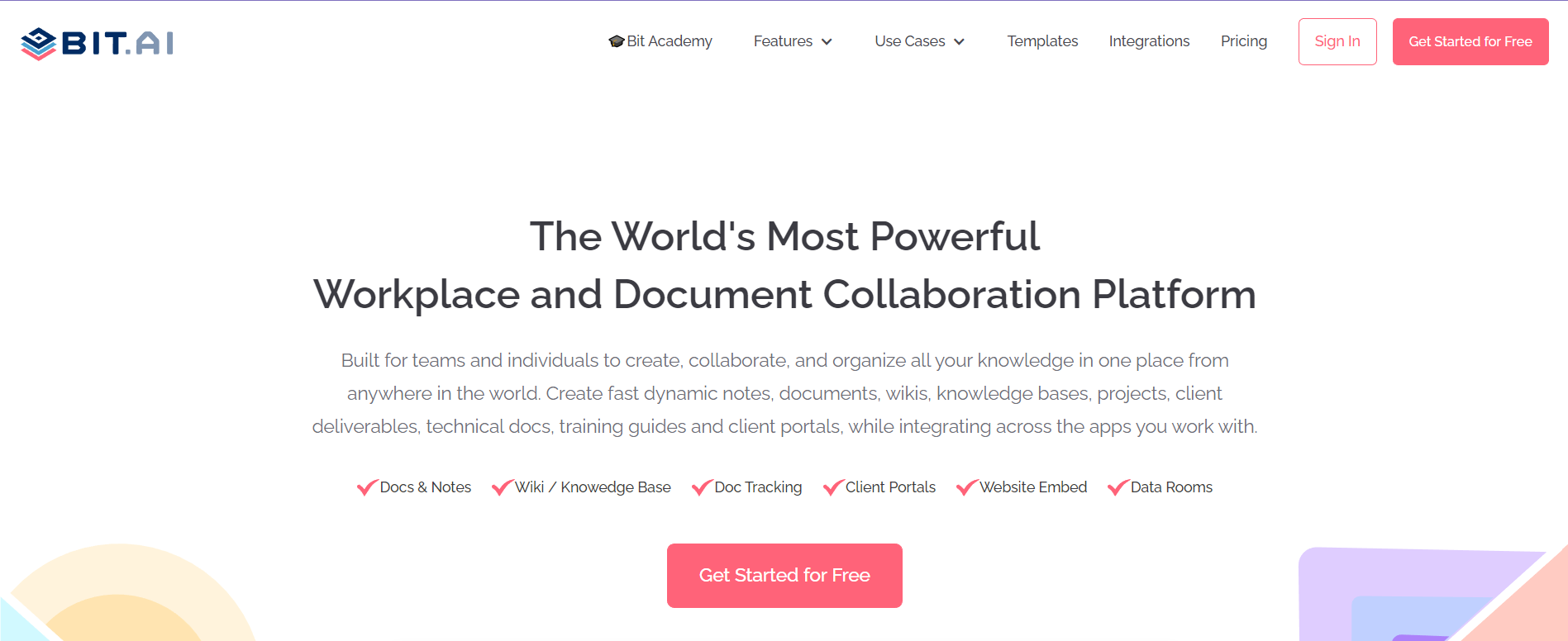
Photo Source Bit.ai
(1) Bit.ai
You could use your computer’s built-in notepad for taking notes, but the usefulness is quite different with Bit.ai. With Bit.ai, you can take notes as well as prepare assignments and reports, and it comes with usable templates too. It’s simple to use, and you can create your own custom workspaces — inviting friends and colleagues into a workspace you’ve created. Whether working online or discussing documents, Bit.ai’s workspace supports real-time collaboration.
Beyond editing your own written notes freely, you can also embed photos, spreadsheets, YouTube videos, GIFs, PDFs, podcasts, and other content types. Whether working with a team or using it for studying, you can also check who has viewed your document and how long they spent reading it.
Free users have some functions restricted. For paid plans, there’s a Standard Package ($12/month), a Plus Package ($20/month), and for Enterprise you’ll need to contact the Bit.ai team directly. Bit.ai can be used via its website; there’s no standalone app yet.
(2) OneNote
When it comes to digital tools, Microsoft can’t be left out. OneNote is Microsoft’s note-taking app. It’s free to use, and you can create as many custom notebooks as you like, with your own titled notes inside each one. It works across laptops, PCs, tablets, and phones, so you can use it easily wherever you go.
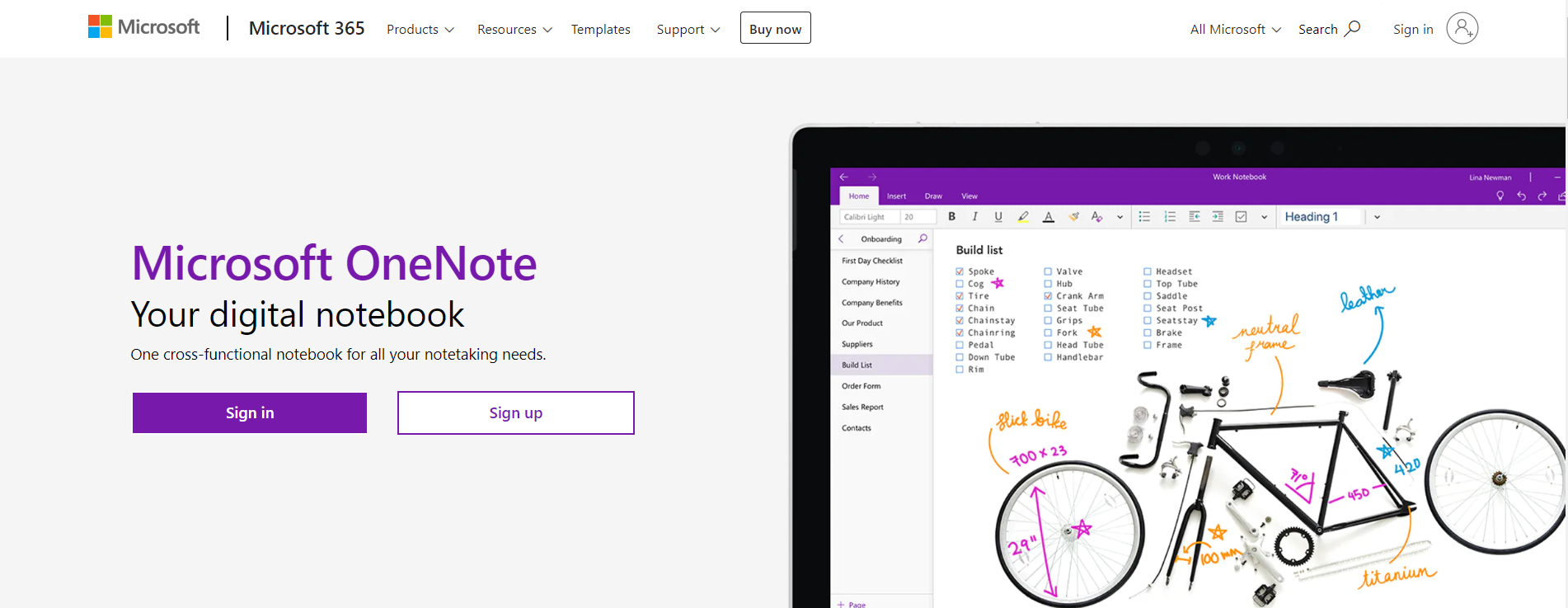
Photo Source OneNote
OneNote supports handwriting and stylus pen input for taking notes. Besides text, you can also embed tables, files, photos, videos, links, and audio recordings.
You can share your OneNote notes with others and edit them together in real time. With auto-sync built in, changes made on one device instantly appear on your other devices too. Another notable feature is the ability to password-protect your notes.
You can use Microsoft OneNote via www.onenote.com, or download it on laptops, PCs, smartphones, and tablets.
(3) Evernote
Evernote is another note-taking app that’s familiar to almost everyone. Like Microsoft OneNote, it supports handwritten notes, as well as text, audio, pictures, web pages, video recordings, and other formats. It’s accessible via website, software, and mobile app, and supports stylus pen input, making it easy to use. It can even scan and save your own handwritten notes, making it a genuinely useful tool.
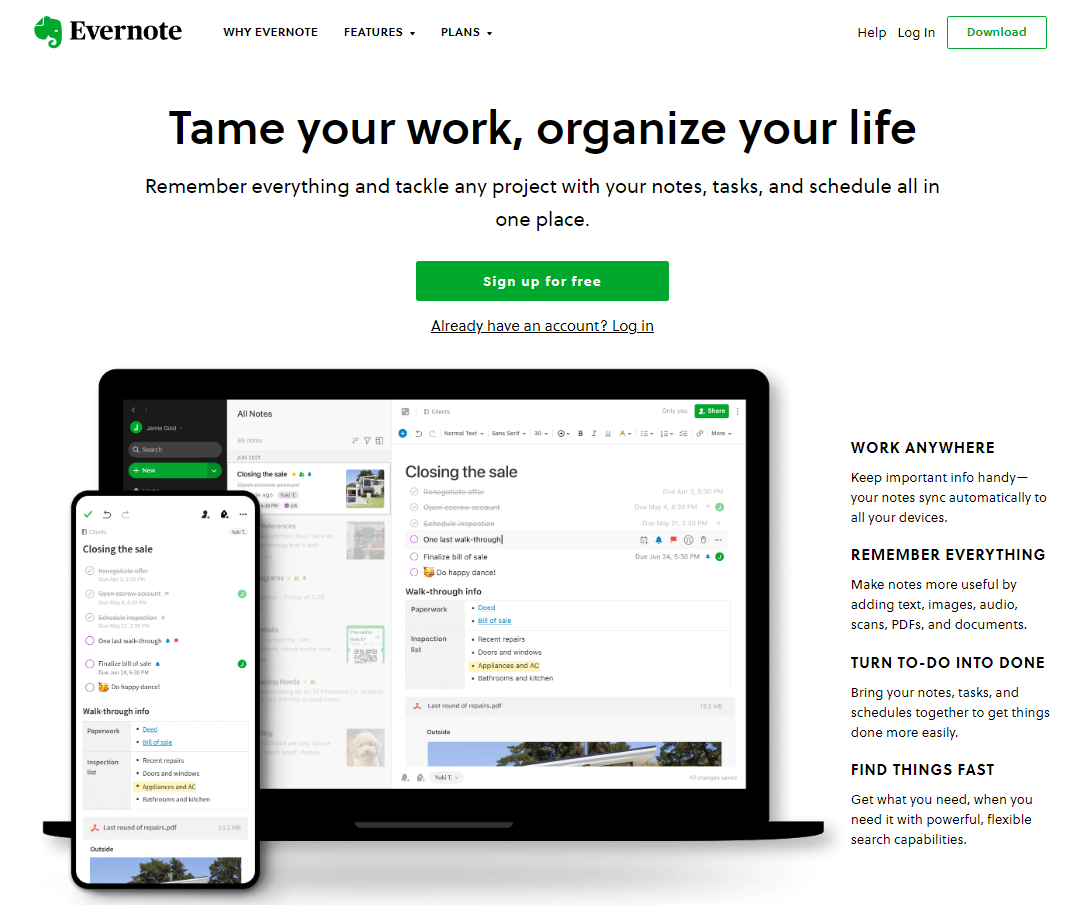
Photo Source Evernote
Like the other note-taking apps mentioned above, it supports collaboration with others. Its built-in presentation feature is a standout, and it’s quite useful whether for work or for students studying.
Those who want to use Evernote can access it at evernote.com, or download the app for laptops, phones, and tablets. Free users have some functions limited, and Professional plans are available at various price points.
(4) Notion
No list of note-taking apps would be complete without Notion. While it’s a note-taking app at its core, it’s a highly versatile tool with a wide range of templates and functions that let you build as much as your imagination allows. Rather than just jotting notes, Notion is arguably even more useful for project management and team management.

Photo Source Notion
In Notion, you can create tables, boards, calendars, galleries, and timelines. You can build as many pages as you like, and one handy feature is that data within those pages can be linked and used much like Excel. Teams can also edit and comment in real time. There’s no limit on the number of files you can upload, though each file is capped at 5MB.
Interested users can choose from four plans: Personal, Personal Pro, Team, and Enterprise. The Personal Plan is free and supports up to 5 members, with unlimited pages. Other plans require a monthly subscription fee. Notion can be accessed via notion.so, or used on iOS, Android, Mac, and Windows.
(5) Google Keep
Just like Microsoft, Google can’t be left out when it comes to digital tools. Alongside useful platforms like Google Docs, Spreadsheets, and Slides, Google Keep is another one worth mentioning. Unlike the other note-taking apps listed above, it doesn’t support handwriting or video. However, it does support voice typing, and you can scan and add your own handwritten notes. You can add photos, collaborate with others, and set reminders. You can also change the color of each page, and label your notes for easy organization.
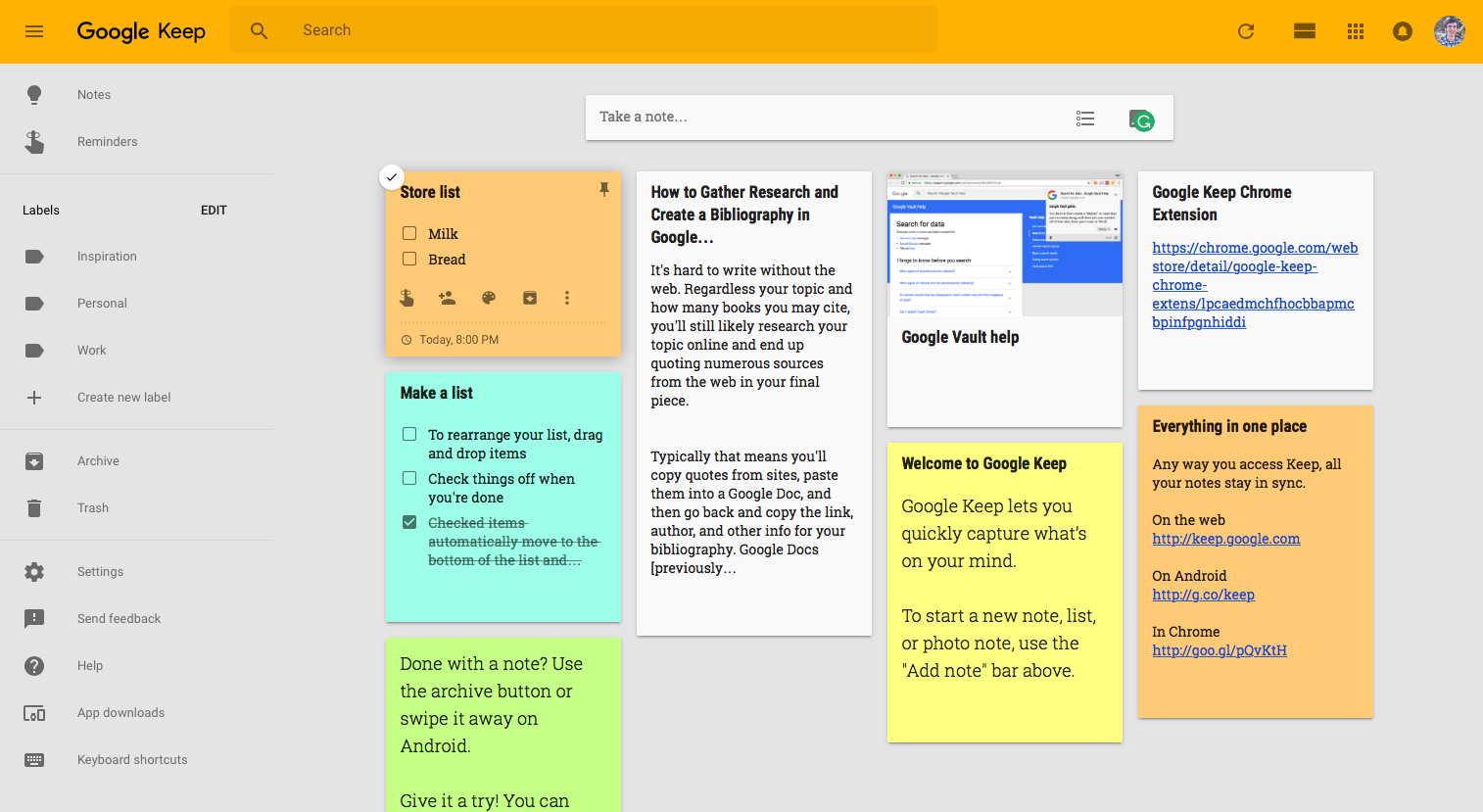
Photo Source Laptrinhx.com
It’s free to use and fast and lightweight in operation. Being a Google product, it also integrates easily with all of Google’s other applications. You can use it via keep.google.com, or download the app to use it.
FAQ
Q: Which of these note-taking apps is completely free?
A: Google Keep is free with no paid tiers; OneNote, Evernote, Bit.ai, and Notion all offer free plans with some functions limited, plus paid upgrades.
Q: Which app is best for team or project management rather than just notes?
A: Notion, thanks to its tables, boards, calendars, and real-time team collaboration features.