Not just for resumes and research papers — whenever you need to write documents on a laptop or computer, the tool almost everyone reaches for first is Microsoft Word. Microsoft’s Office products — Word, Excel, PowerPoint, and others — are easy to use, but it’s still worth knowing how to use them smartly. Here are 8 features you may not know about in the simple, familiar Microsoft Word.
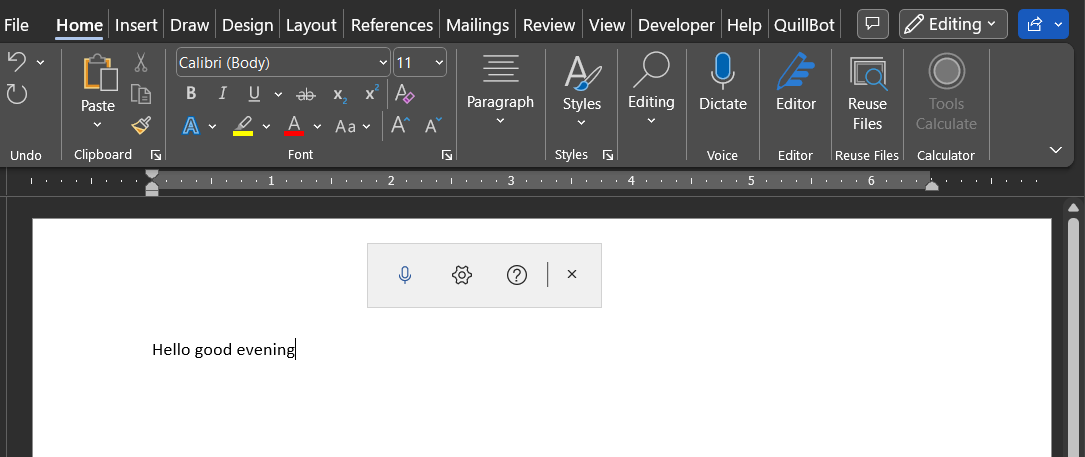
(1) Voice Dictation
Instead of typing word by word, Word includes a speech-to-text feature that lets you dictate your writing by speaking. Whether you’re short on time or just in a hurry, you can speak and have it typed out for you. This feature, called Dictate, has been available since Office 2019 on macOS and Windows 10, as well as on iOS and Android phones. However, it does require a Microsoft 365 subscription. You’ll find Voice Dictation under Voice on the Home tab.
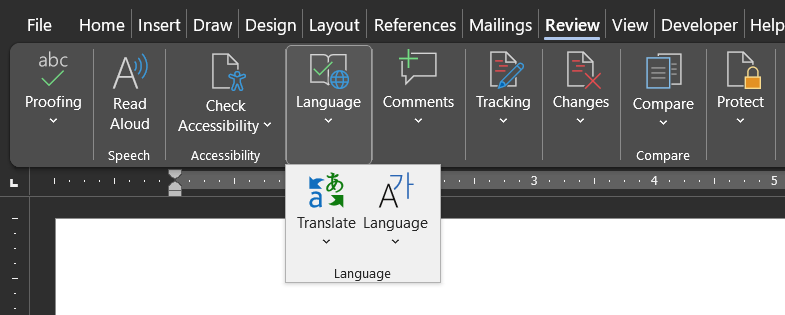
(2) Translation
Whether you want to translate something you’ve written or just a selected passage, Microsoft has built in a translation feature too. It saves you the trouble of switching over to Google Translate — you can translate directly within Word. You’ll find it under Translate on the Review tab. This also requires a Microsoft 365 subscription.
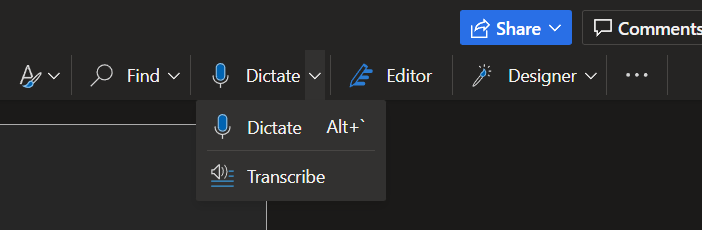
(3) Audio Transcription
For those using Microsoft Word via the website rather than as software, there’s a feature that converts audio files into documents. In the same place where you’d use speech-to-text, clicking Dictate lets you transcribe audio files into text via the Transcribe button.
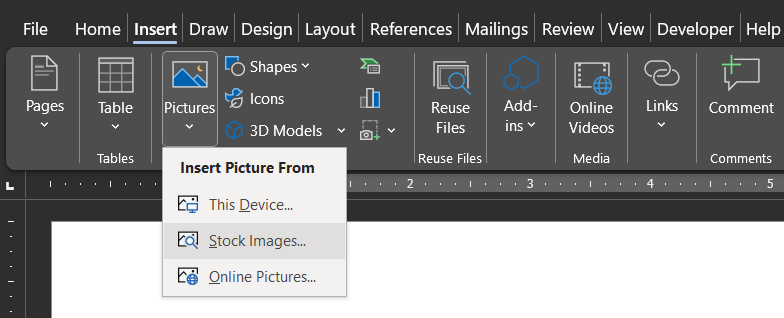
(4) Stock Photos
Anyone who uses the internet is likely already familiar with stock photos for high-quality images. While they’re usually not free elsewhere, Microsoft Word lets you use stock photos at no cost. Just go to Insert Photo, select Picture, and then choose Stock Images. Search for the image you want, then edit and insert it as needed.
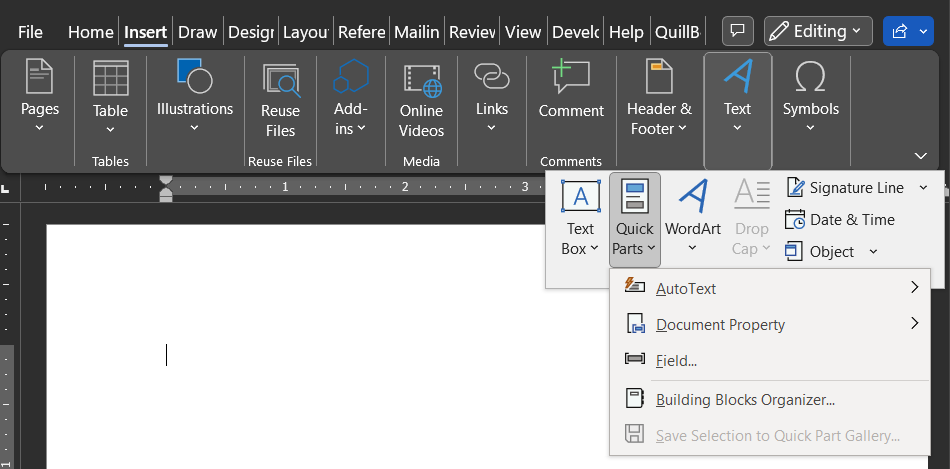
(5) Quick Parts
This new feature lets you insert reusable elements into your document. Things like your name, an abstract, or a company address can be inserted as text elements by selecting Quick Parts under the Insert tab.
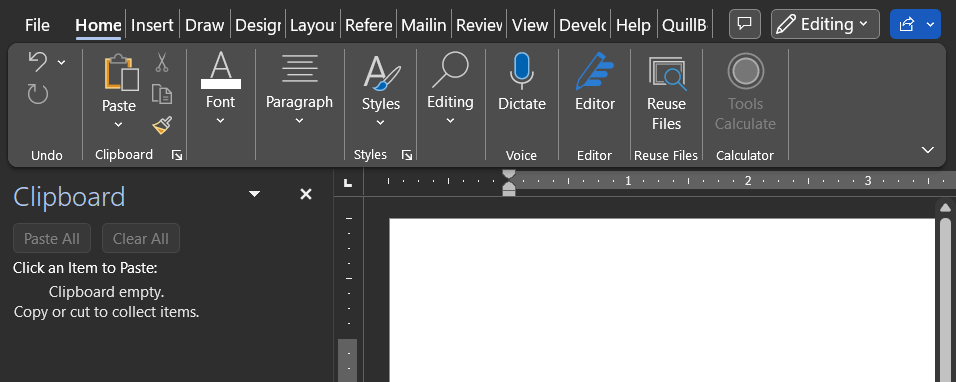
(6) Clipboard
The Clipboard is a board that keeps track of everything you’ve copied. This Clipboard can store up to 24 copied items. You can open it by clicking the drop-down arrow next to Clipboard on the Home tab.
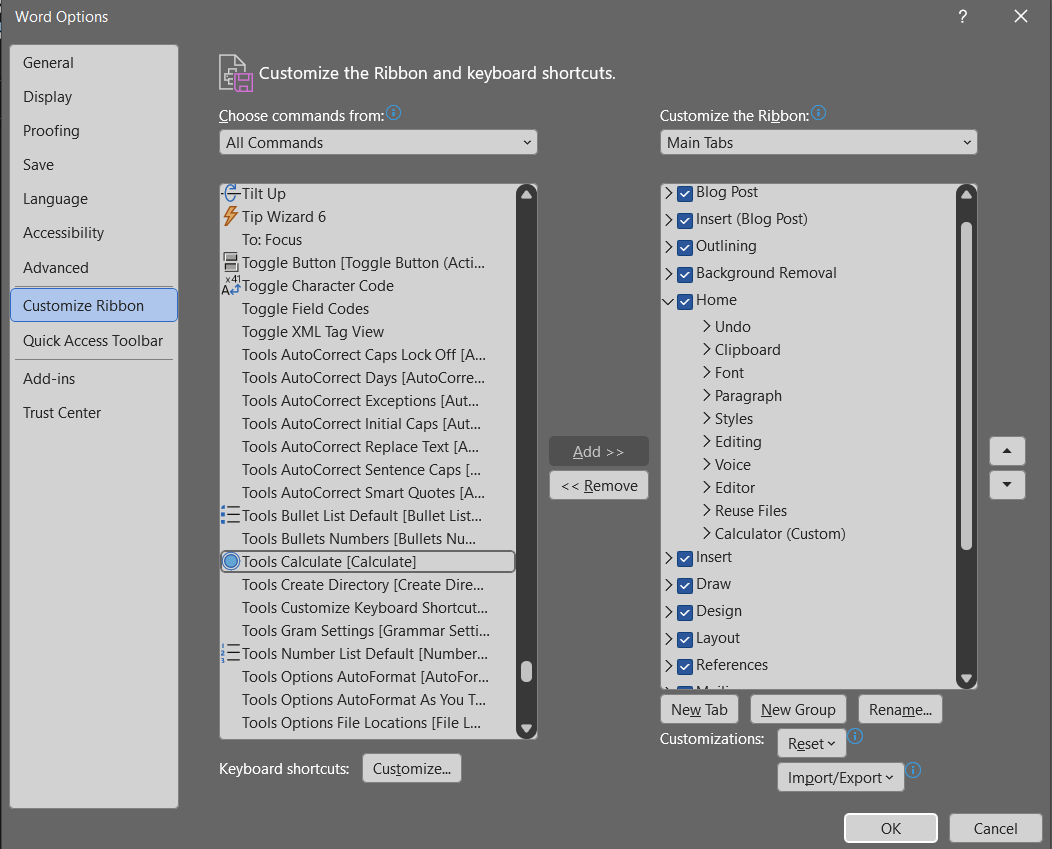
(7) Calculator
Whatever the reason you’re using Microsoft Word, needing to do a calculation often means hunting down a calculator or opening the one built into your computer, wasting time. To solve this once and for all, you can add a calculator directly into Microsoft Word. To add it, go to Word’s Options >> Customize Ribbon. Among the commands that appear, look for the “Calculate” command under Tools. Once you find it, drag it into a tab, or add it to a group or a new tab on the right side. To use the calculator, select the numbers you want to calculate and click Calculate — the result will appear in the bottom-left corner.
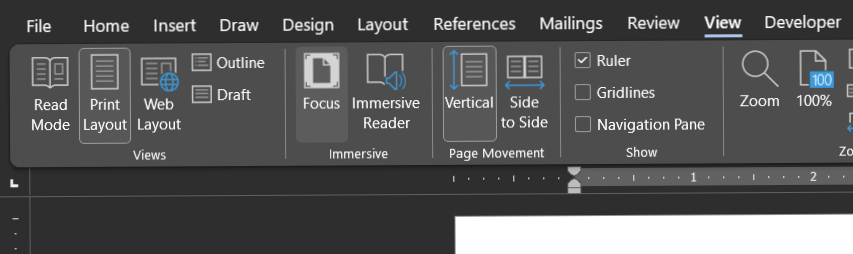
(8) Focus Mode
Staying focused while writing can be difficult. Whatever the reason — something in your surroundings or something on your computer — your attention can easily wander. To help prevent that, Word includes Focus Mode under Immersive on the View tab. Turning on Focus Mode hides all the tabs, letting you concentrate purely on the writing at hand.
FAQ
Q: Do I need a Microsoft 365 subscription to use Voice Dictation and Translation in Word?
A: Yes, both the Dictate and Translate features require an active Microsoft 365 subscription.
Q: Where do I find Focus Mode in Word?
A: Under the View tab, in the Immersive section.